
Grid View
Equal attention across every stream.
Keep every feed at a consistent size for side-by-side monitoring. Statistics appear over each stream, so status and performance remain visible without changing screens.

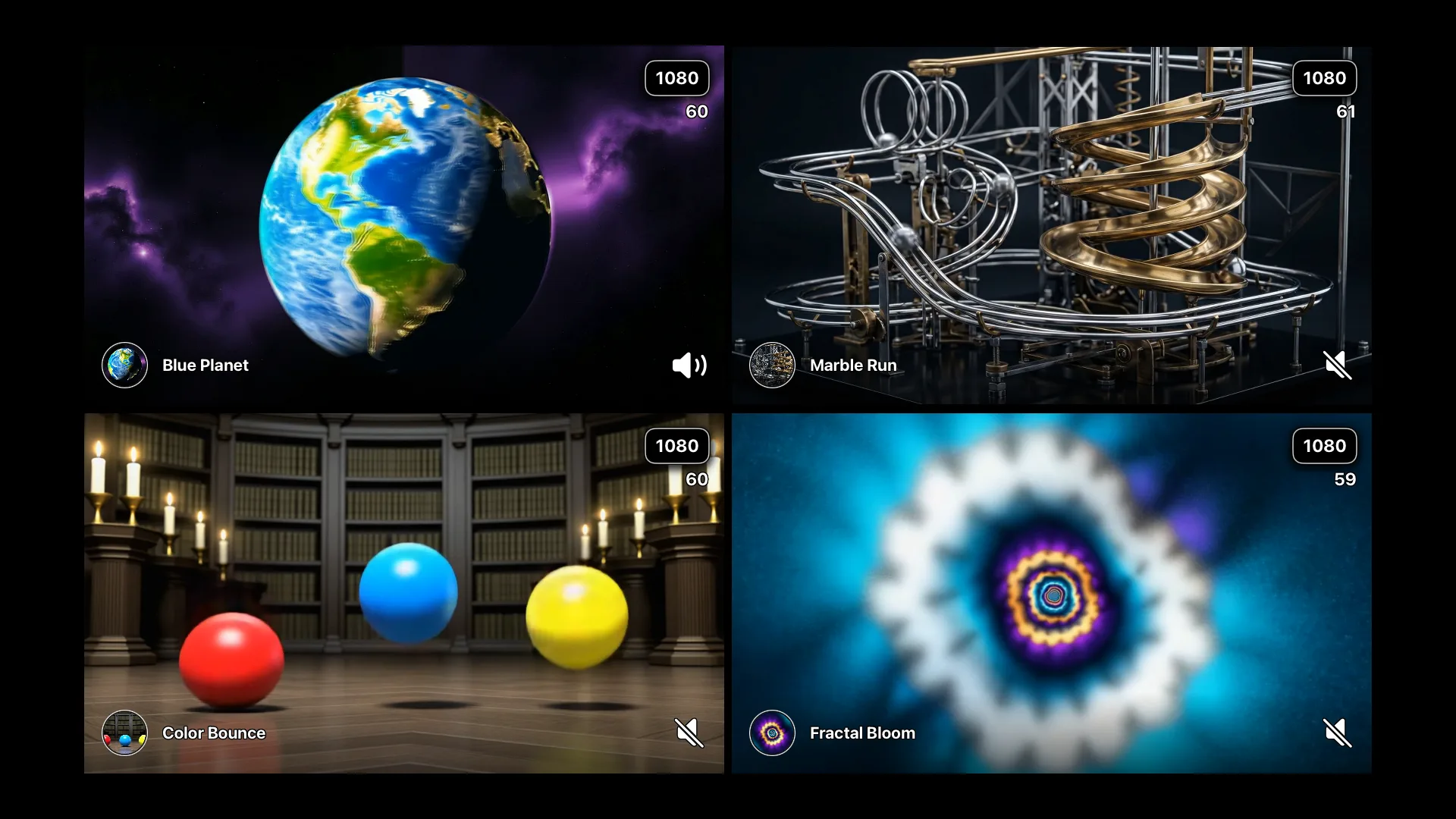
Multi-stream monitoring

Why it exists
Stream Gazer is built for creators and their moderators to monitor the quality of their own streams across multiple feeds and resolutions—all at once.
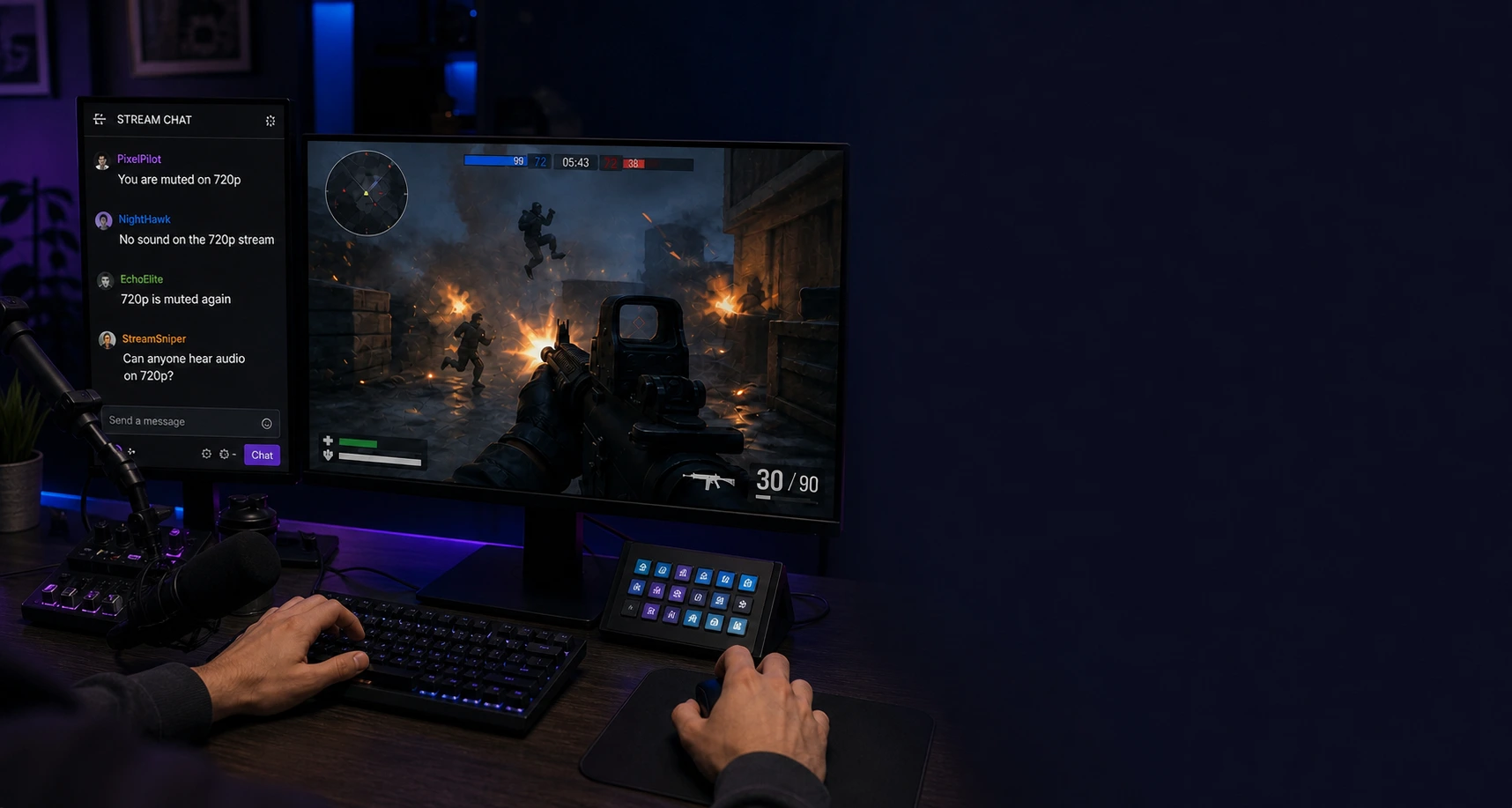
“Chat keeps saying I’m muted on 720p… Are they trolling me again?”
“Is 1080p fine—or is that feed broken too?”
“I need every feed and quality visible on one screen.”
The solution
We built Stream Gazer for the screens you already use—from the phone beside your keyboard to the TV across the room.
Grid View
Keep every feed at a consistent size for side-by-side monitoring. Statistics appear over each stream, so status and performance remain visible without changing screens.
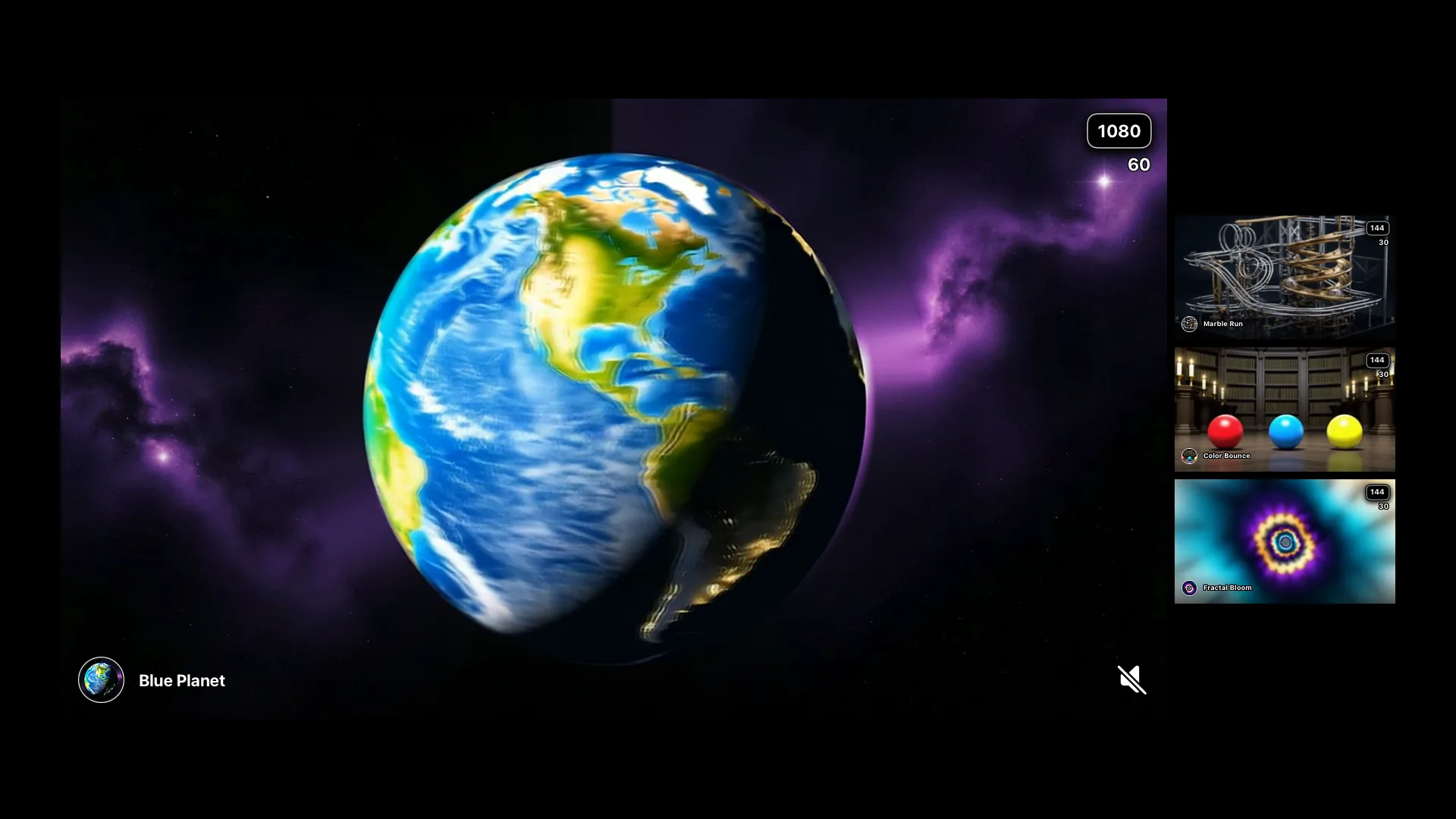
Gallery View
Give the stream that needs attention more space while keeping the remaining feeds visible alongside it. The same in-view statistics stay available at a glance.
How it works
Open an account, enter each app’s binding code, set one catalog, and press Play.
Creating account…
No devices bound yet
https://streamgazer.app/demo2/earth/1080p60/live.m3u8Readyhttps://streamgazer.app/demo2/crystal_ball/1080p60/live.m3u8Readyhttps://streamgazer.app/demo2/bouncing_balls/1080p60/live.m3u8Readyhttps://streamgazer.app/demo2/fractal_zoom/1080p60/live.m3u8Ready
Self-hosted catalog.json
A catalog.json file tells Stream Gazer which titles, images, qualities, and HLS stream URLs to display.
Publish it at a public HTTPS URL, then paste that URL into the app. Self-hosted catalogs never require a subscription.
This complete item comes from our live demo3 catalog. The root value is a JSON array, and each item contains one title and its available stream qualities.
Try it without subscribing. Stream Gazer downloads with demo2 prefilled and ready to play. Change demo2 to demo3 in the catalog URL, then press Play to see this catalog in action.
[
  {
    "title": "Kinetic Rail",
    "image": "https://streamgazer.app/demo3/images/vintage_ball_machine.png",
    "catalog": [
      {
        "quality": "1080p60",
        "m3u8": "https://streamgazer.app/demo3/vintage_ball_machine/1080p60/live.m3u8"
      },
      {
        "quality": "720p30",
        "m3u8": "https://streamgazer.app/demo3/vintage_ball_machine/720p30/live.m3u8"
      },
      {
        "quality": "144p",
        "m3u8": "https://streamgazer.app/demo3/vintage_ball_machine/144p/live.m3u8"
      }
    ]
  }
]titleimagecatalogquality1080p or 720p.m3u8.m3u8 URL for that quality.Serve valid JSON from a stable public HTTPS URL using the application/json content type.
Every image and m3u8 URL must be accessible from the device running Stream Gazer.
Paste the complete URL—for example, https://streamgazer.app/demo3/catalog.json—into the catalog URL field.
Subscriber catalog access
Log in to streamgazer.app, bind your devices, and keep an active Stream Gazer subscription on at least one bound device. The Cloud Hosted Catalog then unlocks for your account.
Choose Open catalog editor to manage the titles, channel images, quality labels, and stream URLs shared across your bound devices.

Build and preview
Add up to four titles, choose each channel image, and enter the stream URL for every quality you want to monitor.
The preview updates as you edit, showing your changes in both Grid and Gallery. Select Save and publish to publish the updated catalog to your bound devices.
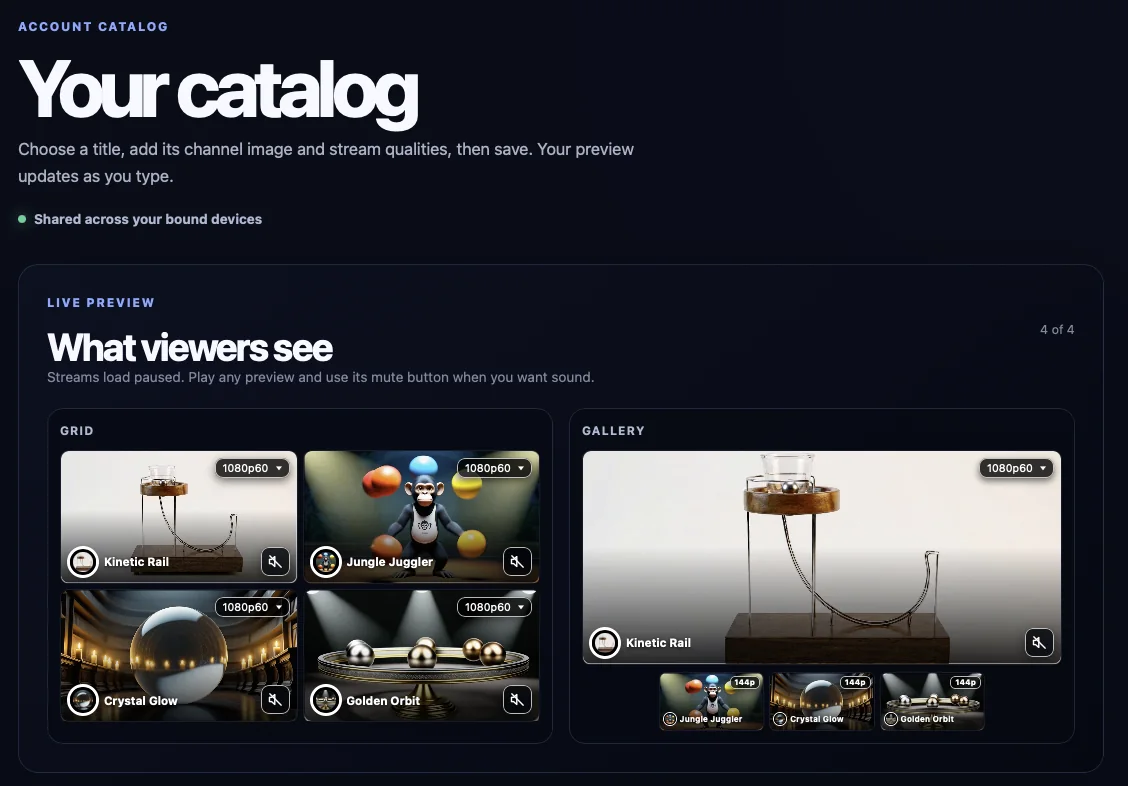
Titles and stream qualities
Choose a title tab to edit its name and channel image, then add one quality label and stream URL for every rendition you want to monitor.
Add or remove stream qualities as needed, reorder your titles, and choose Save and publish when you are ready. Saved changes become available across your bound devices.

FAQ
It displays several live streams on one screen in either Grid or Gallery layout, with stream information kept directly in view.
No. A self-hosted static catalog.json works without a subscription. A subscription adds the Cloud Hosted Catalog, which you manage through the streamgazer.app website.
Yes. One subscription covers all of your Stream Gazer devices within the same platform family. An Apple subscription can be used on your iPhone, iPad, Apple TV, and Mac; a Google Play subscription can be used on your Android phones, Android tablets, Google TV, and Android TV devices; and a Microsoft Store subscription can be used on your Windows devices. Subscriptions do not transfer between platform families, so Apple, Google, and Microsoft each require a separate subscription.
Stream Gazer is available for tvOS, iPadOS, iOS, macOS, Android phones, Android tablets, Google TV and Android TV devices, and Windows.
Grid gives every stream equal space. Gallery makes one stream primary while keeping the remaining streams visible nearby.
It is a list of stream titles, channel images, quality labels, and HLS URLs. You can host it yourself and open its HTTPS URL directly in Stream Gazer.